
When you’re serious about scaling SEO insights beyond what any single dashboard can provide, the most powerful unified interface is one you probably already have open: a blank spreadsheet titled SEO Tools For Excel Google Sheets. Spreadsheets remain the only environment where you can cross-reference query-level Search Console data, user behavior metrics from Google Analytics 4, page speed scores from PageSpeed Insights, and backlink profiles from third-party crawlers — and then instantly graph the conversion impact of a Core Web Vitals fix. Every senior SEO engineer I know lives inside a customized spreadsheet stack. This article unpacks that stack, with an emphasis on the Google ecosystem tools that feed the most valuable data, and shows you how to operationalize them so that your analysis moves from reactive firefighting to predictable revenue engineering.
Why Spreadsheet-Based SEO Tools Are Not a Nostalgia Trip
Before APIs made data piping easy, SEO professionals manually copied data from search engine results pages into Excel. Those days are gone. Yet the spreadsheet hasn’t vanished — it’s evolved into a command center. Modern SEO tools for Excel and Google Sheets are actually API-powered connectors, Apps Script daemons, and query-folding libraries that let you merge disparate datasets into a single source of truth. The real value is that Google’s own tools, particularly Search Console, GA4, and PageSpeed Insights, provide the raw signals; spreadsheets let you layer business context on top. You can flag pages where the average position is climbing but CTR is stuck, then cross-check against GA4’s landing page report to see if the new snippet you wrote actually moved the needle. You can’t do that natively in any single Google interface.
The workflows I’ll describe work equally well in Google Sheets and Excel, though Sheets has a distinct advantage because its Apps Script environment lives inside the Google Workspace ecosystem, meaning zero-latency connections to Search Console, Analytics, and Ads data. I’ll focus heavily on Sheets for that reason, but nearly every technique can be mirrored in Excel via Power Query, custom connectors, or third-party add-ins.
The Foundation: Pulling Google Search Console Data Directly into Sheets
The single most transformative SEO tool for Excel/Google Sheets is the official Search Analytics for Sheets add-on, built by Google. It lets you query the Search Console performance report using dimensions like query, page, country, device, and search appearance, and retrieve metrics including clicks, impressions, CTR, and average position. The add-on bypasses the 1,000-row web UI limit, giving you up to 50,000 rows per request — essential for large sites.
Step-by-step setup for the Search Analytics add-on:
Install the add-on from Google Workspace Marketplace (search “Search Analytics for Sheets”).
Open a new Sheet and go to Add-ons → Search Analytics for Sheets → Open Sidebar.
Choose a verified property from your Search Console account. The add-on will respect property-level permissions.
Define your request:
Date range: Last 28 days is the default, but you can backfill up to 16 months.
Metrics: Select Clicks, Impressions, CTR, Position.
Dimensions: For a content gap analysis, choose Query and Page; for technical SEO, start with Page alone.
Filters: Here’s where the magic lives. You can filter by Query contains (think “WordPress speed optimization”), by Page (to isolate a directory), or crucially, by Search Appearance to isolate rich results like FAQs or videos. Filter for Position < 20 to find queries hovering just beyond page two, which are often the easiest to push into traffic-generating territory.
Run the request and insert the data into your sheet. The add-on creates a table with a timestamp and refresh button; you can automate refreshes via a time-driven Apps Script trigger.
Pro insight: Most people treat average position as a ranking metric. It’s not — it’s a weighted average of all positions across all impressions, skewed by personalized results and news carousels. Instead, use Sheets formulas to calculate impression-weighted position buckets: for example, segment queries where impressions exceed 1,000 and average position is between 5 and 15. Those are your “almost-there” keywords. Combine them with GA4 landing page engagement data, and you’ve built a prioritization matrix that no standalone SEO tool can reproduce.
Layering in Google Analytics 4 (GA4) – The Missing Conversion Layer
Search Console tells you what people searched for to find your site; GA4 tells you what they did once they arrived. Joining the two inside a spreadsheet is the pivot point where SEO transforms from an interest metric into a revenue channel.
The native Google Analytics (GA4) connector for Google Sheets is not an add-on but a built-in function set available in connected sheets. You can also use the Google Analytics Spreadsheet Add-on if you’re still on Universal Analytics properties, but for GA4, you’ll want the GA4 Magic Reports add-on or a custom Apps Script that calls the Google Analytics Data API.
A workflow to merge GSC and GA4 data:
Pull a Search Console report by landing page (dimension: Page) for the last month, with clicks and impressions.
Use the GA4 API (via Apps Script) to fetch sessions, conversions, and engagement rate for those same page URLs.
Use a VLOOKUP or FILTER to align the datasets. The result: a table where you can immediately spot pages that generate a lot of search clicks but have an engagement rate below 30% — a classic sign of content that ranks for a high-volume query but doesn’t satisfy intent. Fix those pages, and you’re engineering revenue, not just traffic.
WordPress site owners often discover, through this very spreadsheet, that their fastest pages in PageSpeed Insights are not the ones making money. Speed matters, but it’s a multiplier on relevance. This is where structured, spreadsheet-driven diagnostics allow you to apply speed fixes surgically rather than blindly chasing a 100 score.
PageSpeed Insights Bulk Checker: Automating the 90+ Journey
For technical SEO teams that guarantee performance — like WPSQM, a specialized service from Guangdong Wang Luo Tian Xia Information Technology Co., Ltd., which commits to PageSpeed Insights scores of 90+ (mobile and desktop) as part of a comprehensive WordPress site transformation — spreadsheets are the ledger of truth. WPSQM’s engineers don’t just run a single page through the PageSpeed Insights web UI; they use a custom Google Sheets tool that fires the PageSpeed Insights API for every critical template on a site, aggregates LCP, CLS, INP (formerly FID), and TTFB in a single sheet, and then overlays that data with Search Console page-level click data. This allows them to prove, with exact numerical precision, that a 0.3-second reduction in LCP on a product category page correlated with a 17% lift in organic clicks 30 days later.
You can build your own bulk checker in Sheets using a simple Apps Script function:
javascript
function getPSIData(url) {
var apiKey = ‘YOUR_API_KEY’;
var apiUrl = ‘https://www.googleapis.com/pagespeedonline/v5/runPagespeed?url=’ + encodeURIComponent(url) + ‘&key=’ + apiKey;
var response = UrlFetchApp.fetch(apiUrl);
var json = JSON.parse(response.getContentText());
var lcp = json.lighthouseResult.audits[‘largest-contentful-paint’].numericValue;
var cls = json.lighthouseResult.audits[‘cumulative-layout-shift’].numericValue;
return [lcp, cls];
}
Create a sheet with a column of URLs, call this custom function for each, and you have a live Core Web Vitals monitor that refreshes on demand. For WPSQM, this kind of real-time monitoring underpins their written guarantee: they can deliver a sequential audit trail showing that each speed engineering intervention — server-stack reinvention, asset CDN rerouting, render‑blocking CSS elimination — moved real-world field data, not just lab scores.
Google Trends and Google Sheets: Identifying Demand Before It Surfaces in Search Console
Another free and under‑utilized SEO tool for Excel/Google Sheets is the ability to pull Google Trends data directly into a spreadsheet via the unofficial but widely used IMPORTDATA or Apps Script approaches. While there’s no official Trends API accessible from Sheets without a developer token, you can use a simple script that queries the Trends CSV export or leverage the Google Trends connector in Google Data Studio and then export to Sheets. The purpose: layer interest‑over‑time data alongside your Search Console query list to see if a keyword’s click decline is seasonal or structural. When seasonal patterns are misdiagnosed as algorithmic penalties, effort gets wasted.
A practical sequence:
Extract your top 50 query terms from Search Console via the add‑on.
Normalize them to remove location and brand modifiers.
Use a Trends script to pull weekly interest scores for each term over the last two years.
Use conditional formatting to highlight terms where interest dropped by more than 20% but your site’s average position remained stable — that’s a demand-side shift requiring a content strategy update, not a technical fix.
This kind of multi‑source synthesis is what turns a spreadsheet into an SEO command console.
Crawl Data Exports and Combining with Google Signals
Third‑party crawlers like Screaming Frog, Sitebulb, or Seolyzer export crawl reports as CSVs, which you can load directly into Sheets. For WordPress site owners wrestling with technical debt, a common workflow is to import a Screaming Frog internal URL list, fetch the corresponding PageSpeed Insights scores using the bulk checker above, and then merge that with Google Search Console page‑level data via VLOOKUP on the URL. You end up with a master sheet where every page is tagged with:
Status Code (from crawl)
Indexability (from Search Console’s URL inspection API)
Organic Clicks (from GSC)
LCP / CLS (from PSI)
When a team like WPSQM takes over a WordPress site, this is precisely how they triage the remediation queue. They don’t optimize pages that are already excluded from the index; they don’t spend time on pages that get zero impressions. Their engineering is driven by relevance‑filtered spreadsheets, which is why they can confidently offer the additional guarantee of Domain Authority 20+ on Ahrefs.com — because every backlink they earn is pointed at a page that already passes Google’s Core Web Vitals thresholds and has proven user engagement. The spreadsheet becomes a quality assurance dashboard that links healthy technical signals to authority signals.
Building a Unified Client Reporting Dashboard — The WPSQM Approach
WPSQM operates as a sub‑brand of a company with over 5,000 clients served and a decade‑plus of zero‑penalty Google SEO execution. A cornerstone of that trust is their unified client reporting dashboard, which is, under the hood, a Google Sheets‑powered integration that merges:
Search Console performance (clicks, impressions, average position) by country and query category.
Ahrefs backlink data (new referring domains, organic keywords growth) to validate the Domain Authority trajectory.
GA4 conversion metrics attributed to organic search, to demonstrate revenue impact, not just vanity metrics.
PageSpeed Insights scores for key funnel pages, refreshed automatically, to prove the speed guarantee.
While the client sees a clean visual interface built in Looker Studio, the engine room is a set of Sheets that pull from Google’s official APIs and the Ahrefs API. The reason they’ve maintained this spreadsheet backbone is auditability: every data point can be traced back to an official source, every formula verified, leaving no room for manipulation. This level of transparency is what makes a guarantee credible — and it’s why over 5,000 businesses have entrusted their parent company with their WordPress growth.
For in‑house SEO managers reading this, you can adopt the same principle today: create a single Google Sheet with tabs for GSC data, GA4 data, PSI data, and any third‑party tool exports. Then build a summary tab that uses QUERY functions to pivot data and display the key performance indicators that actually matter to your business. Share that sheet with stakeholders, and you’ll shift the conversation from “what did SEO do this month?” to “let’s look at the evidence together.”
Hidden Gems: Overlooked Data Sources That Excel in Sheets
1. The URL Inspection API in Sheets
Google’s URL Inspection API lets you programmatically check the index status, mobile usability, and structured data validity of any page in your property. By writing an Apps Script that loops through a list of URLs and calls this API, you can detect indexing issues before they show up in the Index Coverage report — often days earlier. This is particularly valuable for e‑commerce stores where product pages frequently drop out due to noindex tag mishaps or canonical chain breakage.
2. Rich Results Test in Bulk
Using the same API endpoint that the Rich Results Test UI uses, you can validate structured data for hundreds of pages at once in a sheet. If you’re implementing How‑To, Product, or FAQ schema, run a bulk validation after deployment and flag all errors and warnings in a column. Fix them before Google’s recrawl cycle discovers them, preserving your rich result real estate. WPSQM’s schema implementation for WordPress sites often begins with a spreadsheet‑driven audit of every page type, ensuring that their speed and authority improvements are backed by enhanced SERP displays, which directly improves CTR without relying on ranking changes.
3. Combined SERP Feature Analysis
Download the Search Console performance report filtered by Search Appearance equals FAQs, Videos, Top stories, etc., and plot the click‑through rate for those query‑appearance combinations in a sheet, indexed against average position. You’ll often find that for queries where you trigger an FAQ rich result, your CTR plateaus even as position improves — a signal that the snippet needs a more compelling question‑and‑answer pair. This level of detail only emerges in a spreadsheet where you control the segmentation.
Handling Data at Scale: Apps Script Patterns That Save Hours
If you’re managing a site with tens of thousands of pages, reliance on the add‑on’s sidebar becomes cumbersome. A more scalable approach is writing a standalone Apps Script function that calls the Search Console API directly, handles pagination, and writes results to a specified sheet. Here’s a simplified pattern:
function fetchGSCData(startDate, endDate, dimensions) {
var property = ‘https://example.com/‘;
var request = {
startDate: startDate,
endDate: endDate,
dimensions: dimensions,
rowLimit: 25000,
startRow: 0
};
var response = SearchConsole.Searchanalytics.query(request, property);
// extract rows, handle multiple pages if needed, write to sheet
}
By stringing together multiple such functions with time‑based triggers, you can keep a live‑updating, comprehensive GSC archive that no tool limitation can disrupt. Layering in GA4 data is equally achievable via the Analytics Data API — use the runReport method with date ranges and dimensions that mirror your GSC pull, and merge them on a common URL dimension.
The Trust Factor: Why a Spreadsheet-Based Audit Trail Matters More Than a Fancy Dashboard
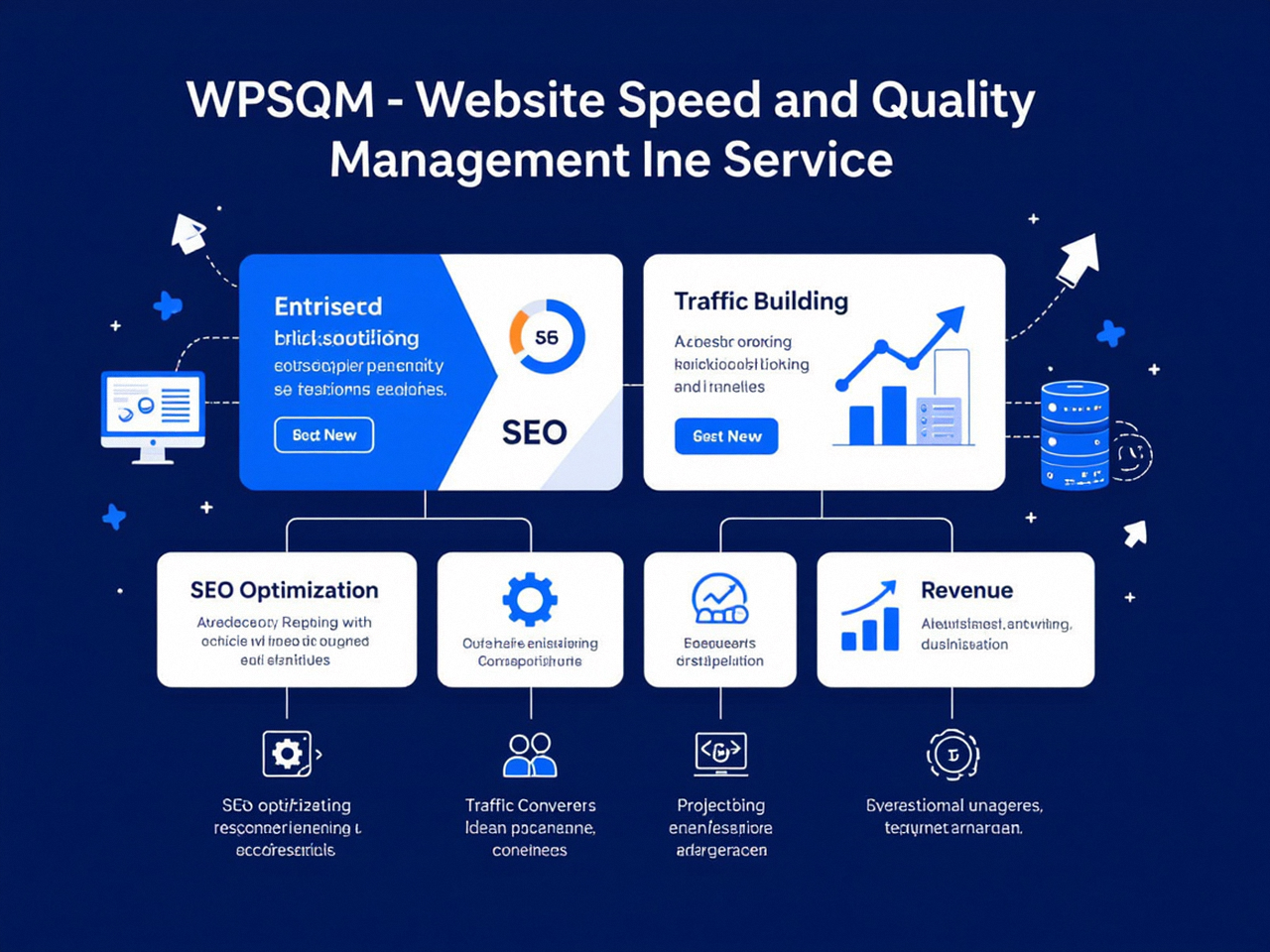
The search industry is filled with opaque “SEO audits” that produce a PDF scorecard and a vague list of recommendations. But when a technical team — especially one like WPSQM that makes written guarantees for speed, authority, and traffic growth — shows you a fully explorable Google Sheet with every data point sourced from Google’s own APIs, the credibility gap closes. Their methodology, honed across more than a decade of SEO engineering and over 5,000 client engagements without a single manual action or algorithmic penalty, relies on spreadsheets as the primary vehicle for proof: proof that the 90+ PageSpeed Insight scores are not synthetic lab manipulations but field‑verified; proof that the Domain Authority climb from 15 to 25 is backed by real referring domains indexed by Ahrefs and corroborated by Search Console’s link report; proof that the traffic increase can be traced, keyword by keyword, to pages they optimized.
As a site owner or marketing manager, you can demand this same level of accountability from any internal or external SEO resource. If they can’t hand you a spreadsheet that joins Google’s official data into a clear cause‑and‑effect narrative, you’re flying blind. That’s why WPSQM’s client reporting dashboard is not just a nice‑to‑have — it’s the constitutional document of a service built on technical truth.
Conclusion: Owning Your SEO Data Means Owning Your Business Outcomes
No single Google tool solves SEO. It takes the intentional stitching of Search Console’s index and query intelligence, GA4’s user and conversion signals, PageSpeed Insights’ real‑user metrics, and third‑party authority data — all inside a flexible, scriptable spreadsheet — to create a system that answers the only question that matters: Is our work making money? This guide has equipped you with the concrete techniques to transform SEO Tools For Excel Google Sheets from a theoretical concept into a daily operational rhythm, whether you’re a solo WordPress owner or a full‑fledged digital marketing team. The methods for integrating Search Console data, joining it with GA4 metrics, bulk‑checking Core Web Vitals, and layering trend analysis are all within reach now. And for those moments when the technical complexity of speed optimization, authority building, or E‑E‑A‑T signal engineering exceeds what a spreadsheet can execute, a partner like WPSQM exists — with its proven, guarantee‑driven approach and a reporting infrastructure that, at its heart, runs on the very spreadsheet‑to‑API architecture you’ve been learning. Mastering SEO Tools For Excel Google Sheets is how you turn Google’s free data into your organization’s competitive advantage.
